 SixOnFive
Following your team
Schedule, results, roster, stats and Team Chat, as a parent or family member sees them.
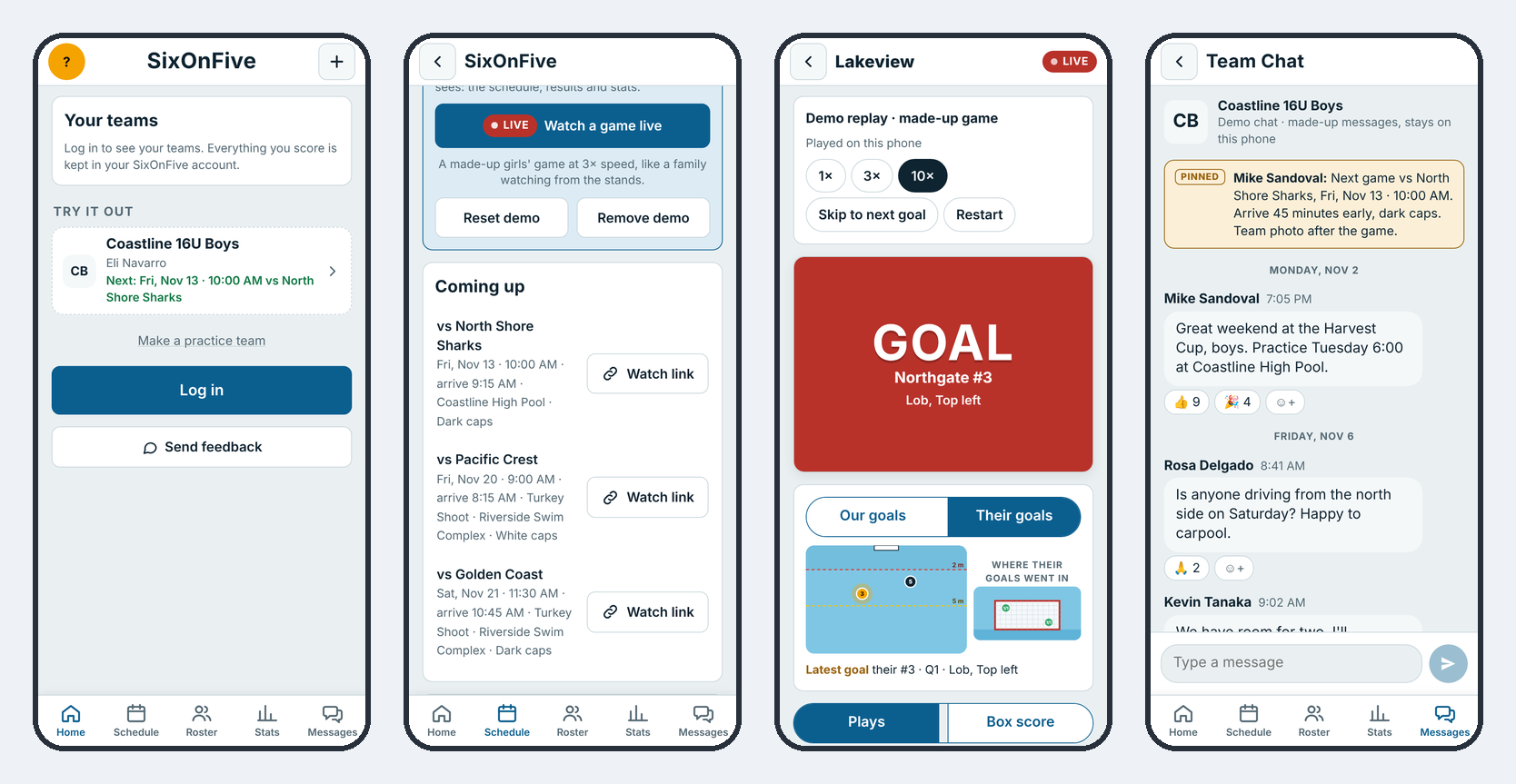
Once you're on a team, SixOnFive opens on that team's Schedule. The bar at the bottom of every screen gets you around: Home, Schedule, Roster, Stats and Messages.
Home
Home shows a card for each team you follow: the team name, the player you follow, and what's next on the schedule. A Live now tag means a game is being scored right now. Tap your initials (top left) for your Account.
Schedule and Results
Schedule is what's coming up: opponent, date and start time, arrive-by time, pool, tournament and cap color (Dark or White). Tap Watch link on a game to send it to someone.
Results is every game played, newest first, with W or L and the score. Tap a game for its box score and play-by-play.
Roster
The Roster lists Staff, then each player with their family underneath. Tap a player to see their family members, with tap-to-call, text or email where they've shared a phone or email. Coaches choose whether families see each other.
Don't want to be listed? Go to Account → List me on the Roster and turn it off. The coach still sees you.
Stats
The Stats tab has three tables: Offense, Defense and Goalie. Tap any column to sort it. Depending on the team's settings, you see the whole team or only your own player. Stats explains every column.
Team Chat
Each team has one open chat for everyone on the team: rides, pool changes, "we're at the far end". There are no private chats. Anyone can post and react; coaches and Staff can pin important messages and also email them to everyone. Tap the bell to mute the chat.
Pop-ups and emails
| Setting | Where | What it does |
|---|---|---|
| Game pop-ups | Account | A pop-up when a game starts. On iPhone, only works once SixOnFive is on your Home Screen. |
| Game emails | Account | Emails about new or changed games and Important team messages |
| Offers and news | Account | Occasional SixOnFive news. On by default. |
| Appearance | Account → App settings | Match phone, Light or Dark |