 SixOnFive
Running a team
For the Head Coach and Staff: start a team, roster, invites, roles, settings, what you track and the schedule.
- Start your club and team
- Roster
- Invite people
- Change someone's role
- Team settings
- What we track
- Game rules
- Schedule and Notify team
- Needs you
- Hiding a test game
- Game video
A parent or the coach can set up the team. Teams run fine even if the coach never opens the app: Staff can do almost everything.
Start your club and team
During the beta you need a beta key (it looks like SOF-7KQ2-M4XD). Most people get an invite link that walks them through it.
- Open the beta invite link on your phone and put SixOnFive on your home screen (Getting started).
- Sign in with your email.
- Tap Start a new team. Enter your beta key if asked.
- Pick or add the club or school, team type, level and Girls/Boys/Coed. SixOnFive builds the team name ("Harbor Bay 14U Girls"); tap Edit to change it.
- Answer Are you the team's head coach? If not, you become Staff and can invite the coach.
- Tick I agree to the Beta Terms and Privacy Policy.
- Add the roster: copy one from another of your teams, type or paste a list, or skip for now.
No key? Tap Request early access. Every request is reviewed by hand.
Roster
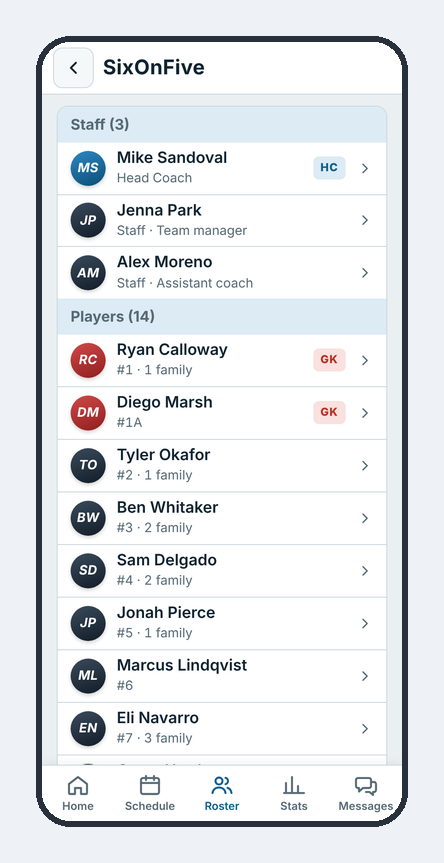
Open Edit roster. One player per line: cap number, name, GK for goalies, and L or R for left- or right-handed. You can paste rows from a spreadsheet or pick a CSV file.
A player who leaves: tap ✕. They disappear from the roster, scoring and season stats, but their old games stay as they happened. Players who left → Bring back restores them.
Collect only what scoring needs: name and cap number. No birthdays, addresses or photos.
Invite people
Tap + Invite at the top of the Roster.
| To add… | Use | Approval |
|---|---|---|
| Families, in bulk | The team invite link (good for 30 days) | None, unless you turn on Team link needs approval |
| A specific family | Invite by email | None |
| Staff | Invite Staff by email | None |
| The head coach | Invite the Head Coach by email | None; they become Head Coach when they sign in |
When someone asks to join through another parent's link, they show under Waiting for your OK with who invited them. Tap Approve or Decline.
Change someone's role
Tap a person on the Roster and pick their Role: Head Coach, Staff, Scorer or Family. Picking Head Coach for someone else hands the role over; you become Staff. Remove from team is on the same card.
Team settings
Tap the gear at the top right of the team page. Each section folds open:
- Team: name, short name, season, default rule set.
- Families & watching: whether families see the whole team's stats or only their own player, whether families see each other, who can watch live, whether families can share game links.
- What we track: see below.
- Logo & colors: team logo and two team colors, used on the live scoreboard and team cards.
- Team watch link: one link that always shows the team's live game, or the last result and next game.
- Roster & people: edit roster, invites, Team link needs approval.
What we track
New teams start on Basic. Turn on more under Advanced once your scorers are comfortable.
| Level | Includes |
|---|---|
| Always on | Goals, shots, saves, goals against, ejections, 5Ms, timeouts |
| Basic (each can be turned off) | Assists, steals, turnovers, field blocks, sprints, scoreboard time |
| Advanced (off until turned on) | Steal types, turnover types, where our and their shots came from, where they went on the cage, shot type, shot situation |
Turning something off never erases what was already recorded.
Game rules
Two rule sets are built in: High school (3 full timeouts + one 30-second, overtime periods then golden goal) and Club tournament (2 full timeouts, no 30-second, a tie goes to a 5M shootout). Club teams default to Club tournament. You can save your own set for a tournament with different rules, and it's shared with your team's scorers.
Schedule and Notify team
Schedule → + Add a game: type (Game, Scrimmage, Practice), opponent, date, start time, arrive by, pool, tournament and cap color. After saving, tap Notify team to email everyone. If the game changes, notify again and the email says "Updated".
Needs you
The Needs you card on the team page collects things waiting on you: people asking to join, invites not accepted after 3 days, a game started by mistake, and a game from an earlier day still marked live.
Hiding a test game
On a finished game's box score, tap Hide this game. It comes off Results and out of season stats, but nothing is deleted. Hidden games → Unhide brings it back.
Game video
On any game, tap + Add game video and paste a YouTube link (add a label like "Q1–Q2" if you have several). Everyone on the team sees a ▶ Game video button. Video links never show on public watch links.